Batch
The Batches section enables users to monitor and manage batch operations executed by the Fluxnova BPM Engine. Batch processing is commonly used for large-scale operations that affect multiple process instances, such as migrations, modifications, retries, or other bulk execution tasks. The Batch module provides visibility into both running and completed batches, allowing users to track progress, investigate failures, and perform operational actions when needed. It allows displaying details of a batch such as the start and end-time or the number of remaining jobs. For failed jobs, it displays the error message and allows a retry or deletion of the job.
Overview
Similar to other modules within Control Center, the Batch module consists of:
- Batch List View
- Batch Details View
The List View provides an overview of all batch operations, while the Details View offers deeper insights into the execution status, job logs, and any failures associated with a specific batch. By default, the list displays active batches, with the option to switch between active and completed batches.
Batch List View

The Batch List View displays all batch operations currently known to the system.
Key Capabilities
- View active and completed batches
- Monitor batch execution status and progress
- Identify failed jobs within a batch
- Navigate to detailed batch execution information
- Perform operational actions on selected batches
Users can easily switch between:
- In Progress Batches
- Completed Batches
In Progress Batches
For batches that are currently in progress, the ID, type, user, start time, number of failed jobs as well as the progress is displayed. The progress indicator provides visibility into the overall completion status of the batch.
Note: A batch cannot be completed while it contains failed jobs. Any failed jobs must first be resolved by either retrying or deleting them from the Batch Details View.
Completed Batches
Completed batches provide historical visibility into previously executed batch operations. For completed batches, the list view displays the ID, type, user, start time, end time as well as the execution start time.
Users can view completed batches by toggling from the default active view in the list page. Selecting a completed batch opens the details page, where users can review Job execution logs, Execution history and Failed job information (if applicable)
The details page also provides the ability to retry the associated batch job definitions when required.
Batch Details View
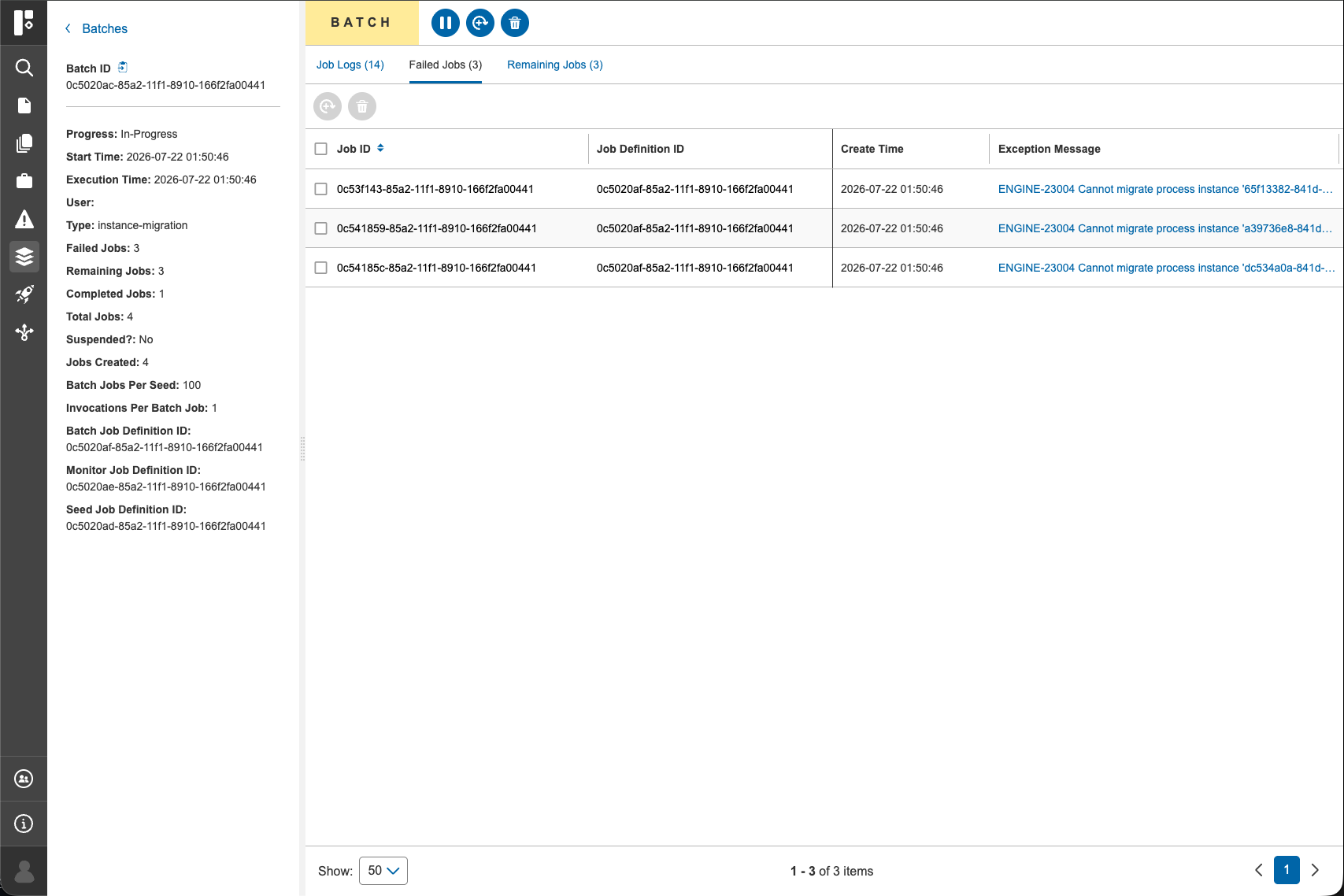
Selecting a batch from the list opens the Batch Details View. The details page provides comprehensive information about the selected batch, including:
- Batch metadata
- Execution status
- Job logs
- Failed jobs
- Remaining jobs
This information helps users monitor execution progress and troubleshoot issues that may prevent a batch from completing successfully.
Available Batch Actions
Actions from the List View (Bulk Operation)
The following actions can be performed on a single or multiple batches at a time:
- Activate selected batch(s)
- Suspend selected batch(s)
- Retry selected Job Definition for batch(s)
- Delete selected batch(s)
Actions from the Details View
The following actions are available for an individual batch:
- Activate batch
- Suspend batch
- Retry Job Definition for batch
- Delete batch