Job Operations
The Job Operations functionality in Fluxnova Control Center provides users with the ability to monitor, manage, and recover failed job executions. It offers operational controls for both Job Definitions and individual Jobs, enabling administrators and operators to maintain process execution health and resolve runtime issues efficiently.
Failed Jobs Overview
Unresolved incidents of a process instance or a sub process instance are indicated by Control Center as failed jobs. To localize which instance of a process failed, Control Center allows you to drill down to the unresolved incident. Hit a red status dot of the affected instance in the Instances tab of the Process Definition Details View to get an overview of all incidents. The Incidents tab lists the failed activities with additional information. Furthermore, you have the possibility to drill-down to the failing instance of a sub process.
When a process instance contains unresolved incidents:
- A red status indicator is displayed for the affected instance in the Instances tab.
- Selecting the affected instance provides visibility into associated incidents.
- The Incidents tab displays details of all failed activities, including error information and execution context.
- Users can navigate from the incident to the specific failing process instance or subprocess instance to perform further analysis.
This approach allows users to progress from a high-level process definition view to the exact point of failure with minimal effort.
Available Action on Jobs
Job Definition Actions
The following actions are available for one or more selected job definitions:
- Activate selected Job Definition
- Suspend selected Job Definition
- Change Overriding Job Definition Priority

Job Actions
Individual jobs can be managed through the Jobs list view or from Jobs tabs. The following actions are available:
- Activate selected Job
- Suspend selected Job
- Set Retry Count
- Change Due Date

Job Suspension & Activation
Jobs and Job Definitions can be activated or suspended from:
- Dedicated Jobs list views
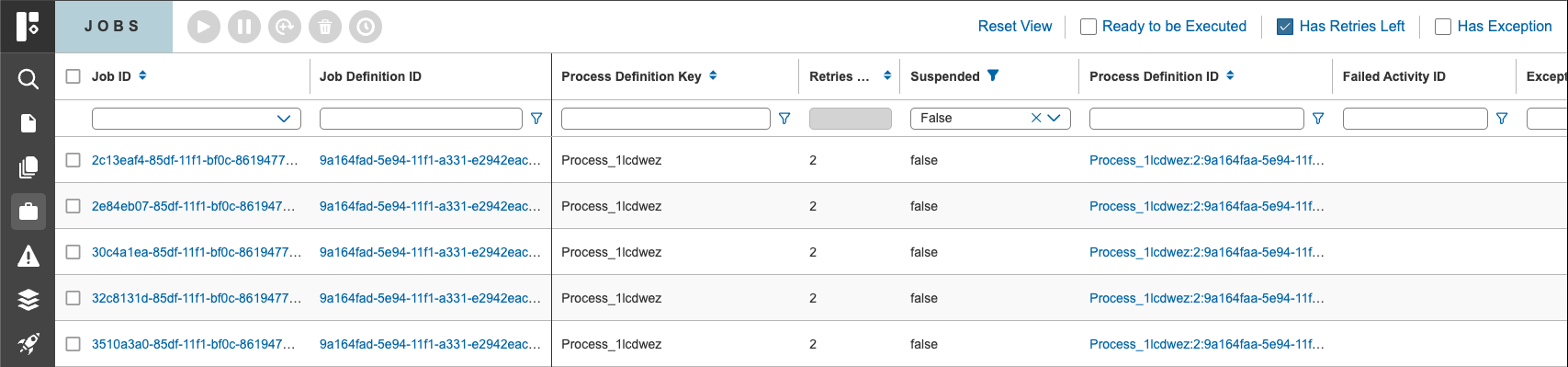
- Related Jobs and Job Definitions tabs within detail pages
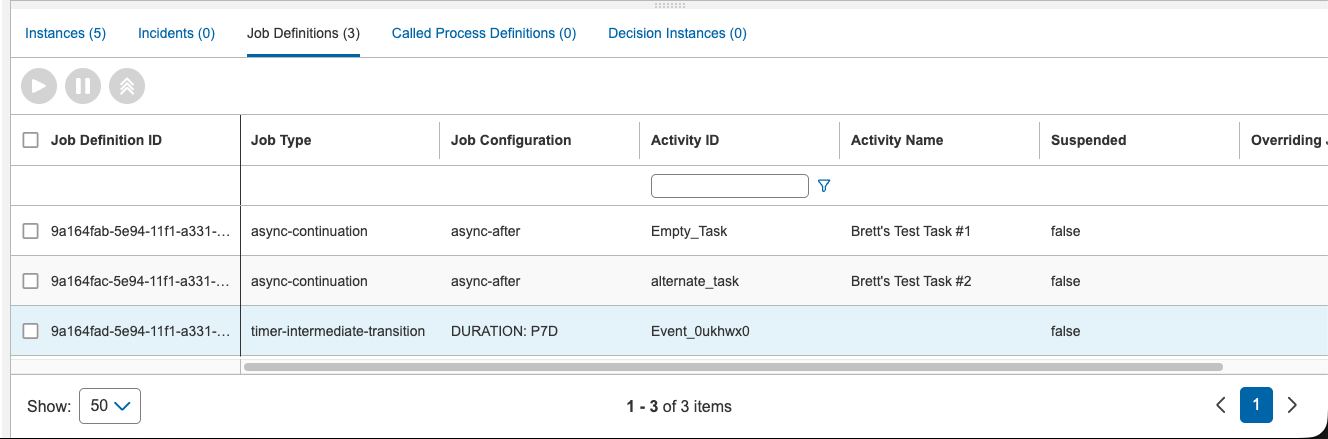
To activate or suspend a Job or Job Definition:
- Select required jobs or job definitions.
- Click the appropriate Activate or Suspend action.
- Review available options in the confirmation dialog.
- Confirm the operation.
The selected items are updated immediately and reflected throughout the application.
Update Due Date
On the list view for jobs, and Jobs tabs on details view, you can use the Change Due Date button.
- Select the jobs to be update due date and click the Change Due Date button .
- A modal dialog opens where you can choose from:
- Recalculate from creation time
- Recalculate from current time
- Set a specific date
- After updating the due date, their values will be updated.
Set Job/Incidents Retry Count
On the list view for jobs and incidents, and tabs on details view, you can use the Set Retry Count button.
- Select the failed jobs to be retried and click the retry button .
- A modal dialog opens where you can:
- Choose whether the previous due date should be kept or set to an absolute date/time of your choice.
- Set retry count of choice.
- After clicking on Retry, the engine will re-trigger the jobs and increment their retry values in the database so the Job Executor can acquire and execute the jobs again.
Set Job Priority
Similarly, users can change the job definition priority by overriding the specified priority. To do so, click the Change Overriding Job Priority icon in the Job Definitions tab. In the dialog box that appears, enter the new priority value or clear an existing override to restore the default setting.