Process Definition
The Process Definitions view provides a centralized interface for managing and analyzing deployed BPMN process models. It allows users to view the latest and all versions process definitions and perform lifecycle operations on them.
Process Definitions List View
The landing page of this section is the Process Definitions List View, which displays all active and suspended process definitions with an option to view only latest version.
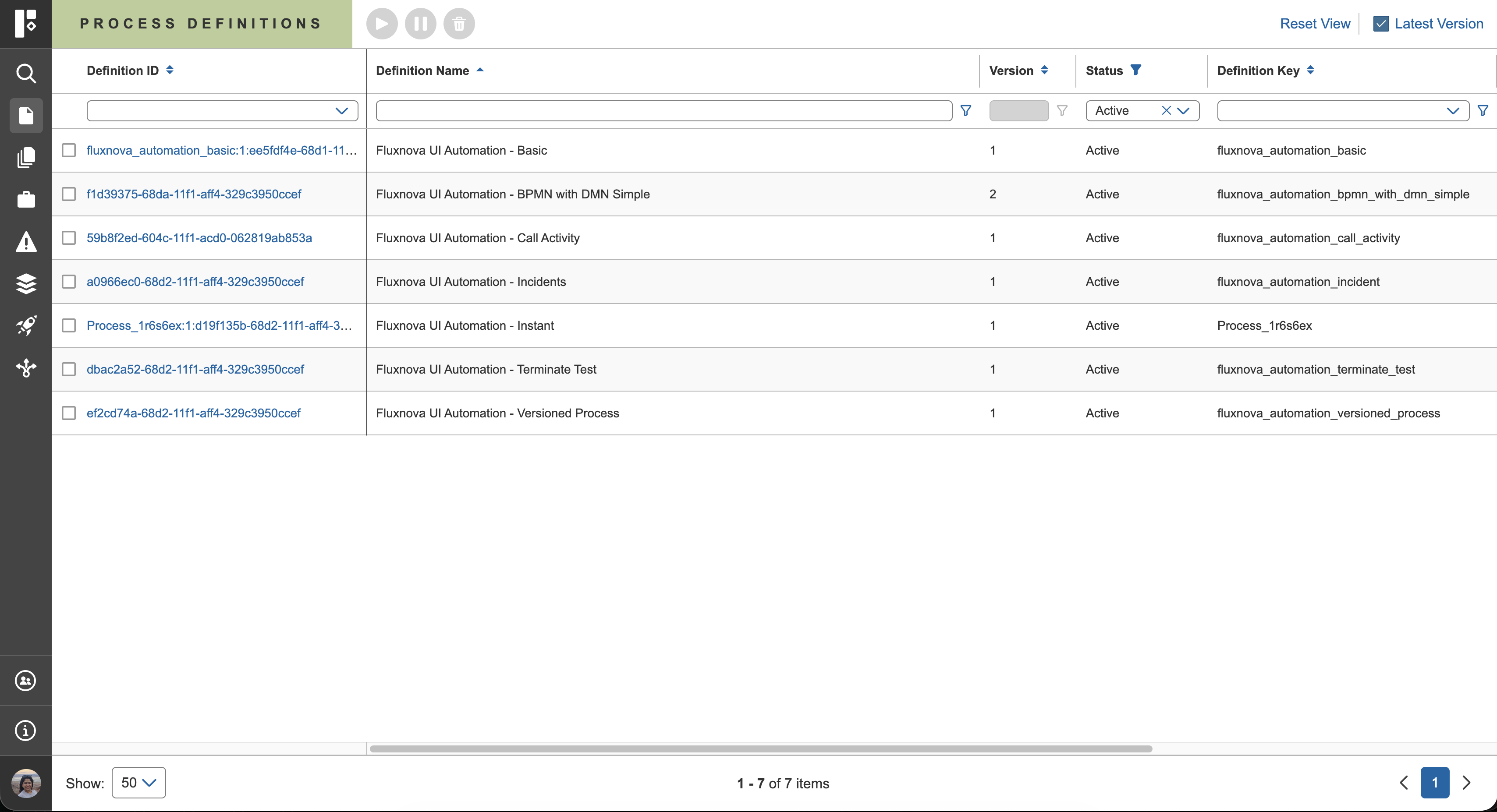
Key capabilities of the list view include:
- Viewing process definitions along with key attributes (e.g., name, definition key, version, status)
- Performing operations such as:
- Activate
- Suspend
- Delete
- Resetting or modifying the list to display latest versions only
Process Definition Details View
Selecting a process definition from the list navigates to the Details View, which is organized into three main sections:
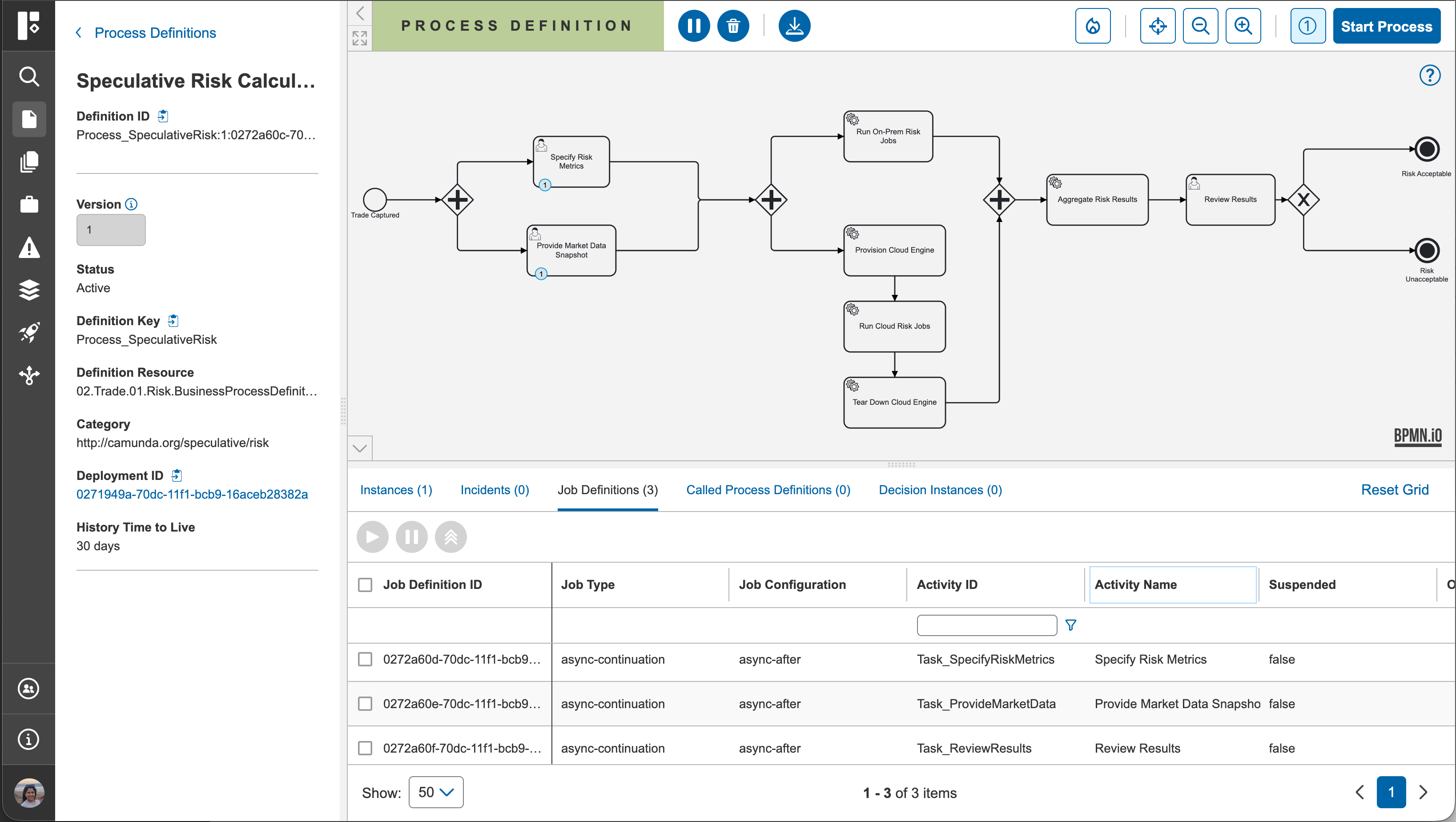
1. Left Panel
The left panel displays key information about the selected process definition, including:
- Status
- Version
- Definition key
- Deployment ID, etc
Additional functionality includes:
- Version selection dropdown to switch between different versions of the process definition
- Versions with running process instances are indicated by an asterisk (*) next to the version number
2. Canvas
The canvas, located in the top section of the Process Definition Details view, provides a visual representation of the BPMN process model. It serves as an interactive workspace that enables users to explore and correlate process elements with their data
Interactive Exploration
The canvas is integrated with the data displayed in the tabs below, enabling bi-directional interaction between the visualization and tabular data:
- Canvas → Tabs: Selecting an activity on the canvas filters and displays only the relevant records (such as process instances, incidents, or jobs) associated with that activity in the tabs below.
- Tabs → Canvas: Selecting a row in any tab (excluding instances) highlights the corresponding activity within the BPMN diagram on the canvas. This synchronized interaction allows users to seamlessly connect process structure with execution data, making it easier to analyze behavior and identify issues.
(See canvas tab interaction for more information)
Navigation and View Controls
To enhance usability and exploration of complex process models, the canvas provides the following controls:
- Zoom in / Zoom out – Adjust the level of detail in the diagram
- Reset view – Return to the default view and positioning
Heatmap Visualization
The canvas also supports heatmap visualization, which provides a graphical overlay of process activity based on execution metrics (e.g., time spent or quantity).
This feature helps users:
- Identify high-traffic or heavily utilized areas of the process
- Detect potential bottlenecks or performance hotspots
- Gain insights into process execution patterns
(See Heatmap for more information)
3. Bottom Section (Tabs)
The bottom section organizes related operational data into tabs for easy access along with their respective action buttons available:
- Process Instances
- Lists all instances of the selected definition
- Provides the ability to migrate instances
- Incidents
- Displays incidents associated with the process instances with the operation to set retry count
- The incident message is clickable and opens a detailed stack trace, providing deeper insights into failures
- Job Definitions
- Shows all job definitions associated with the process with available job operations to activate, suspend, set retry, set job overriding priority and modify due date.
- Called Process Definitions
- Lists subprocesses or referenced process definitions
- Decision Instances
- Lists DMN decision instances associated with the process definition These tabs enable users to quickly navigate between related data and investigate execution behavior.
Available Process Definitions Actions
Actions from the List View
The following actions can be performed on a single process definitions at a time:
- Activate selected process definitions
- Suspend selected process definitions
- Delete selected process definitions
- Reset or filter the view to latest versions only
Actions from the Details View
The following actions are available for an individual process definition:
- Activate the process definition
- Suspend the process definition
- Delete the process definition
- Start a new process instance
- Migrate process instances
- View Heatmap
- Download the BPMN diagram