Process Instance
The Process Instances view provides visibility into active and completed executions of BPMN processes. It enables users to monitor instance state, investigate issues, and perform operational actions at scale or on individual instances.
Process Instances List View
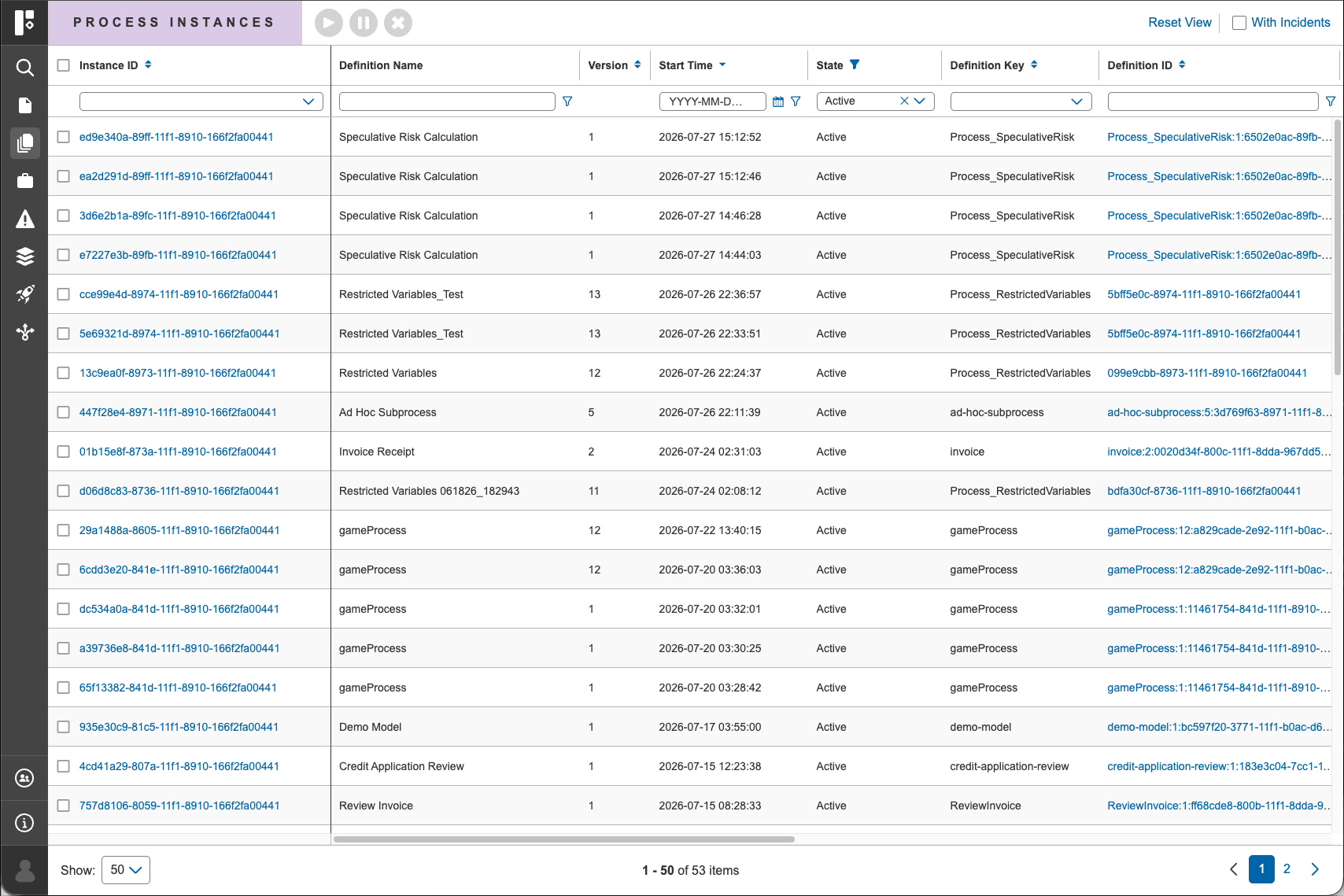
By default, the Process Instances List View displays all active process instances, giving users an immediate overview of ongoing executions.
Key Capabilities
- View process instances with key attributes (e.g., state, process definition name, instance ID, business key, etc)
- Perform bulk actions on selected instances:
- Activate
- Suspend
- Terminate
- Apply filters to available column
- Toggle options to customize the view for monitoring or troubleshooting instances with incidents.
Incident Filtering
By default, the list displays instances without incidents Enabling the “With Incidents” toggle (top-right corner) updates the view to show only active instances with incidents This allows users to quickly focus on problematic executions.
Process Instance Details View
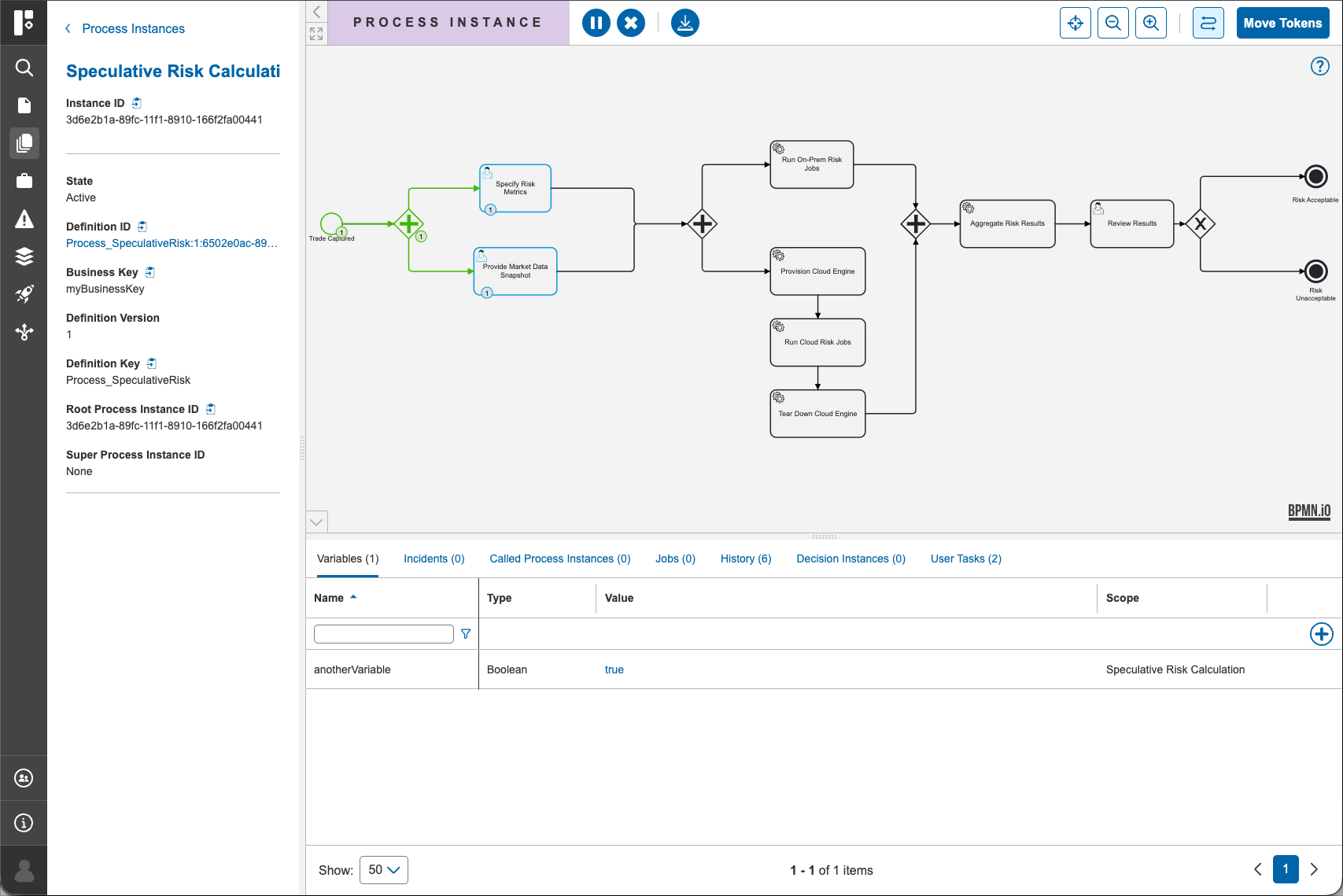
Selecting a process instance from the list navigates to the Details View, which is structured into three main sections:
1. Left Panel
The left panel provides detailed information about the selected process instance, including:
- State (Active, Suspended, etc.)
- Process definition ID and key
- Version
- Business key
- Root process instance ID
2. Canvas
The top section displays the BPMN canvas, showing the current state of the process instance within the workflow.
Using the action controls in the header, users can:
- Activate the instance
- Suspend the instance
- Terminate the instance
- Download the BPMN resource
- Move tokens within the process
- Enable/disable instance flow
Token Movement
When Move Tokens mode is enabled:
- Users can right-click on an activity in the canvas to:
- Add a token
- Remove a token
- Undo or redo changes This feature supports advanced runtime adjustments and troubleshooting.
See Token Movement for more information.
3. Bottom Section (Tabs)
The bottom section organizes instance related data into tabs:
- Variables
- Add, edit, delete and view process variables
- Incidents
- View and set retry for incidents associated with the instance
- Clicking an incident message opens the stack trace for detailed debugging
- Jobs
- View jobs linked to the instance
- Perform activate or suspend, set retry count, and update due date actions on selected jobs
- History
- Provides a complete audit trail of actions and events related to the process instance
- Called Process Instances
- Displays subprocesses initiated by the current instance
- User Tasks
- Displays user tasks part of the current instance
- Decision Instances
- Displays decision instances and a quick link to DMN view related to the current instance
Available Process Instance Actions
Actions from the List View (Bulk Operations)
The following actions can be performed on multiple process instances:
- Activate selected process instances
- Suspend selected process instances
- Terminate selected process instances
- Toggle and filter view (e.g., instances with incidents)
Actions from the Details View (Single Instance)
The following actions are available for an individual process instance:
- Activate the process instance
- Suspend the process instance
- Terminate the process instance
- Move tokens within the process
- Add, edit, and delete variables
- Activate, suspend, set retry count, and update due date for jobs (via Jobs tab)
- Set retry count for incidents (via incidents tab)
- Download the BPMN diagram